01
Install the EA File Install File EA
1
Open MT5 Data Folder
Buka Folder Data MT5
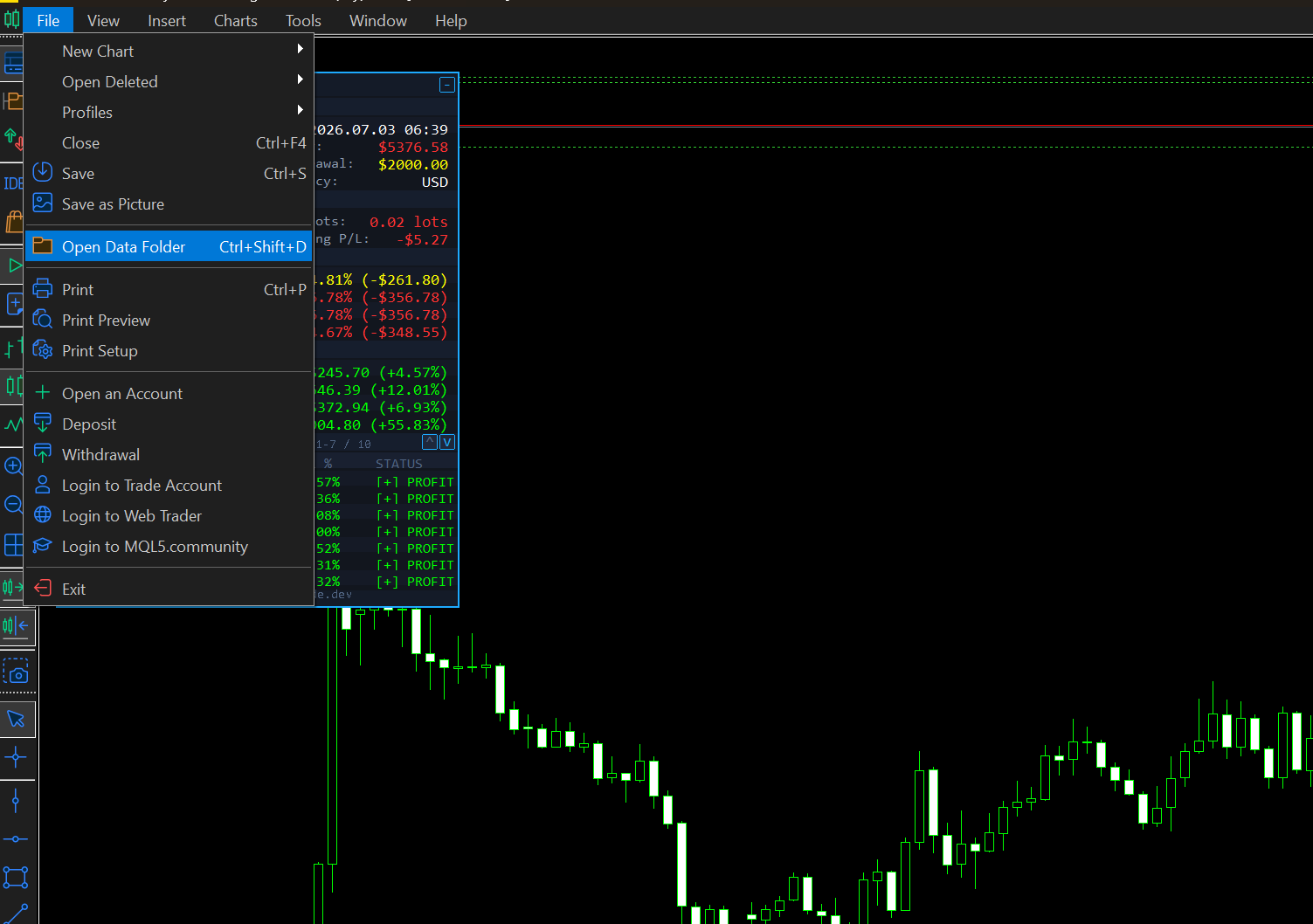
In MetaTrader 5, click the top menu: File → Open Data Folder. A file explorer window will open.
Di MetaTrader 5, klik menu atas: File → Open Data Folder. Jendela file explorer akan terbuka.
2
Navigate to Experts Folder
Buka Folder Experts
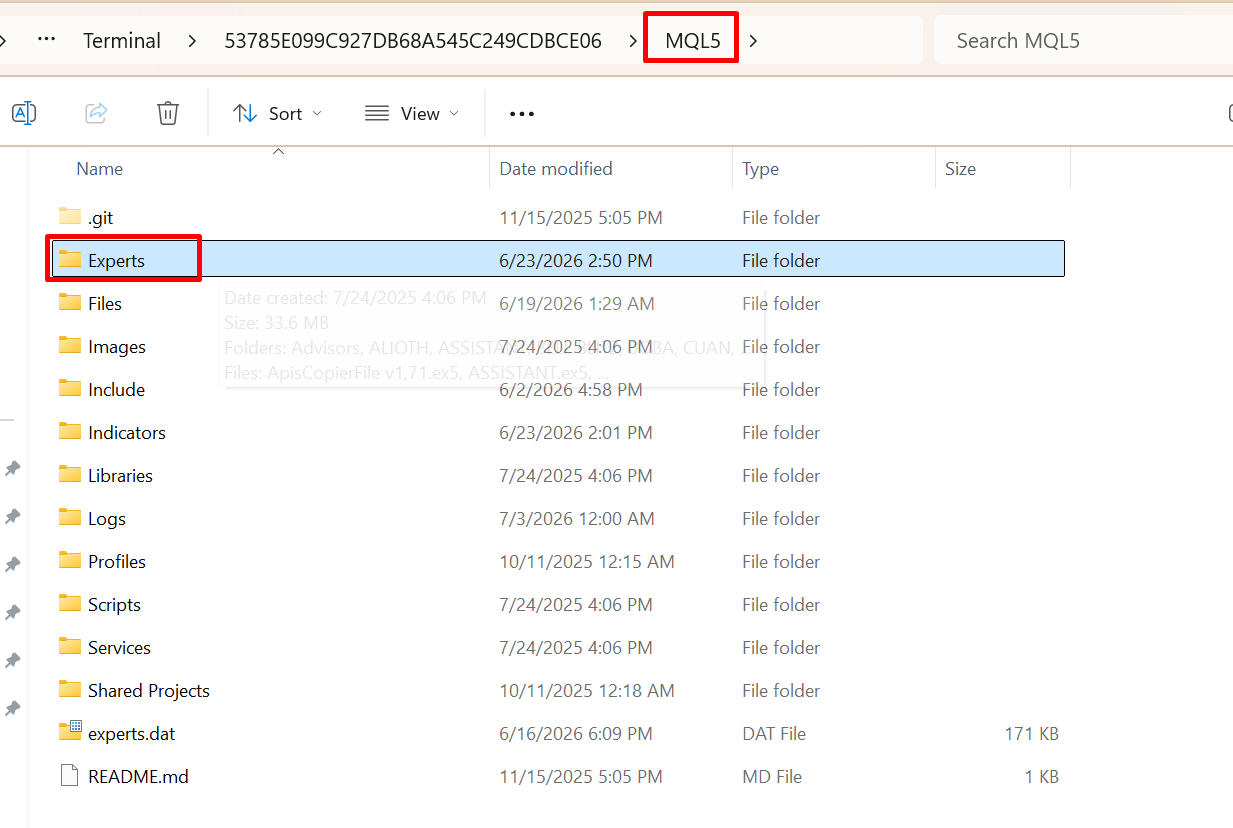
Inside the data folder, open:
Di dalam folder data, buka:
MQL5 → Experts
3
Copy the EA File
Copy File EA
Copy the .ex5 file you received into the Experts folder.
Copy file .ex5 yang kamu terima ke dalam folder Experts.
4
Refresh Navigator
Refresh Navigator
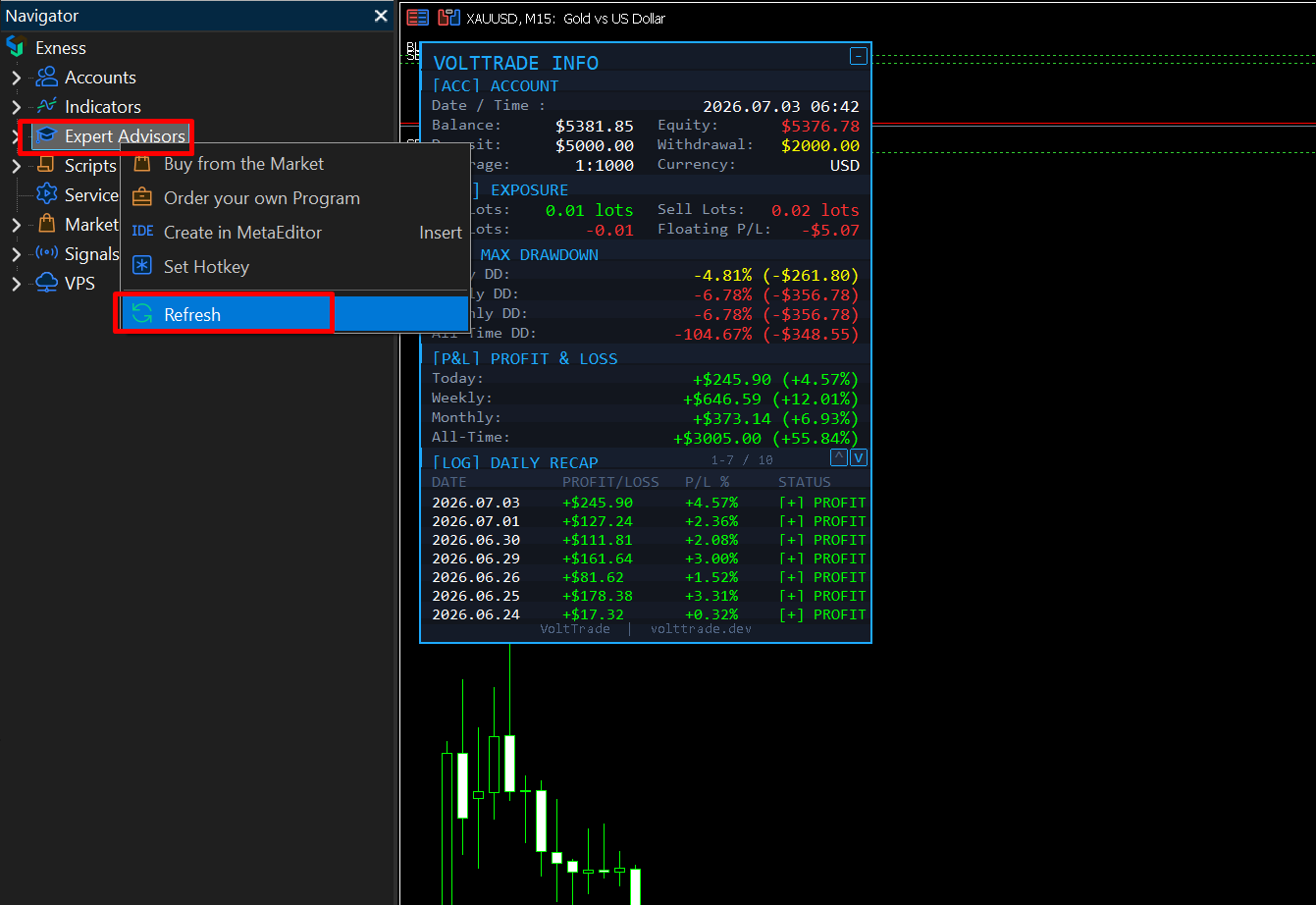
In MT5, go to View → Navigator (or press Ctrl+N). Right-click on Expert Advisors and select Refresh. The EA will appear in the list.
Di MT5, buka View → Navigator (atau tekan Ctrl+N). Klik kanan pada Expert Advisors dan pilih Refresh. EA akan muncul di daftar.
02
Allow WebRequest in MT5 Izinkan WebRequest di MT5
Important: This step is required. Without it, the EA cannot verify your license and will not start.
Penting: Langkah ini wajib dilakukan. Tanpa ini, EA tidak bisa verifikasi license dan tidak akan berjalan.
1
Open MT5 Options
Buka Options MT5
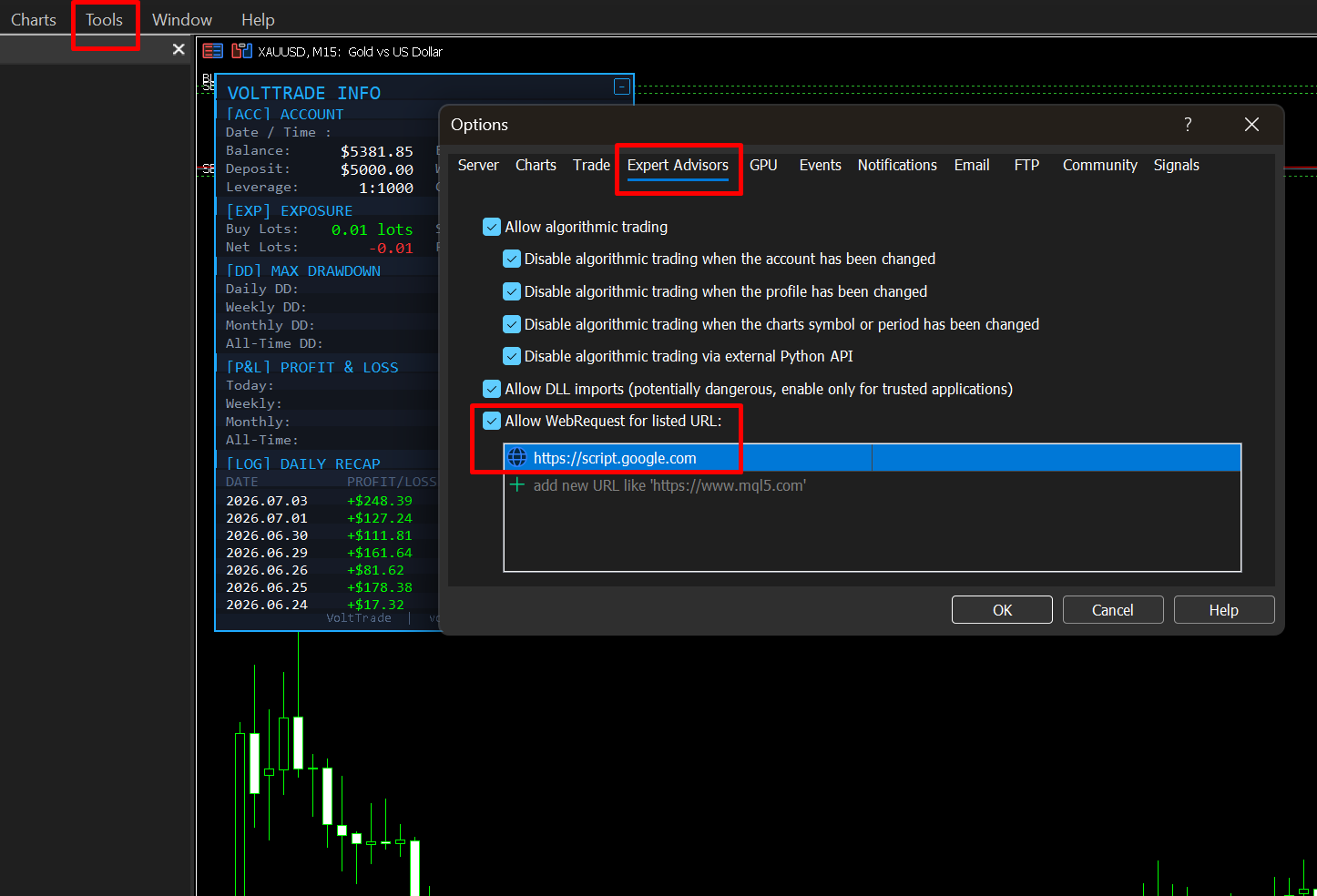
In MT5, click: Tools → Options (or press Ctrl+O).
Di MT5, klik: Tools → Options (atau tekan Ctrl+O).
2
Go to Expert Advisors Tab
Buka Tab Expert Advisors
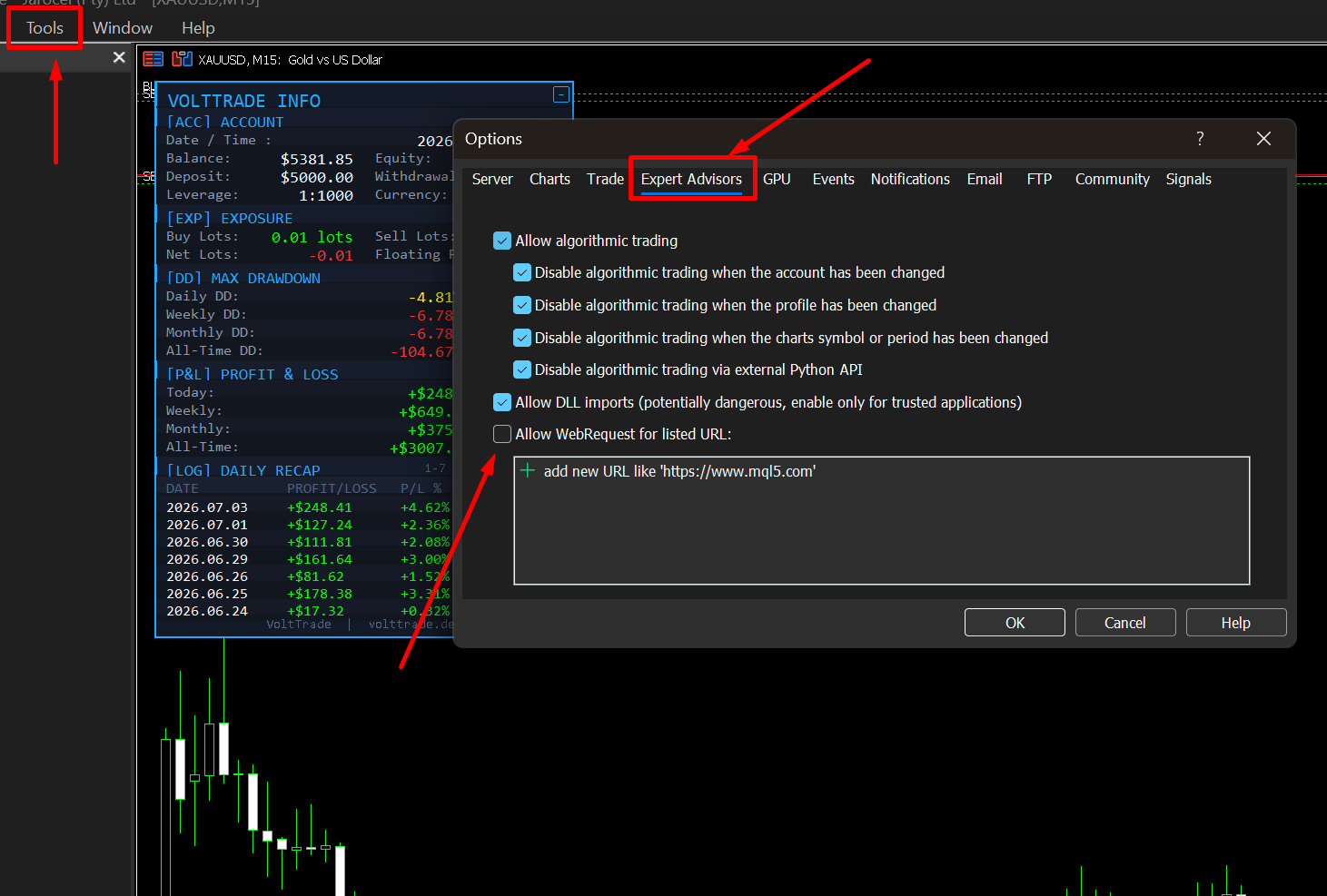
Click the Expert Advisors tab in the Options window.
Klik tab Expert Advisors di jendela Options.
3
Enable WebRequest & Add URL
Aktifkan WebRequest & Tambahkan URL
Check the box "Allow WebRequest for listed URL", then click the + button and add this URL exactly:
Centang kotak "Allow WebRequest for listed URL", lalu klik tombol + dan tambahkan URL berikut ini persis seperti ini:
https://script.google.com
Make sure there is no trailing slash. Copy and paste the URL above to avoid typos.
Pastikan tidak ada garis miring di akhir. Copy paste URL di atas untuk menghindari typo.
4
Click OK
Klik OK
Click OK to save the settings. MT5 may restart — that is normal.
Klik OK untuk menyimpan pengaturan. MT5 mungkin akan restart — itu normal.
03
Attach EA to Chart Pasang EA ke Chart
1
Open a Chart
Buka Chart
Open a chart for the symbol and timeframe you want to trade on.
Buka chart untuk simbol dan timeframe yang ingin kamu trading.
2
Enable Algo Trading
Aktifkan Algo Trading
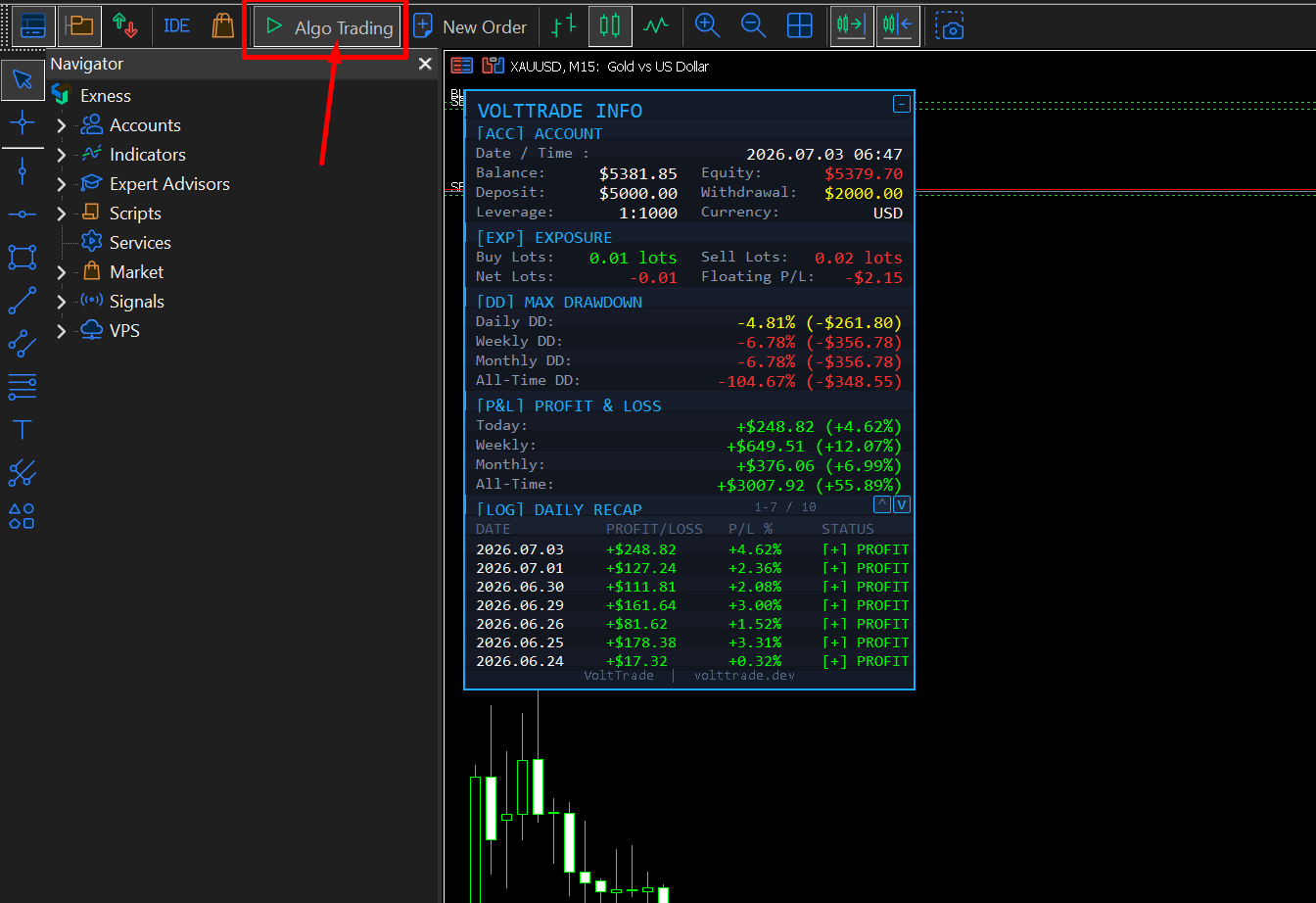
Make sure Algo Trading is enabled in the MT5 toolbar (the button should be green, not red).
Pastikan Algo Trading sudah aktif di toolbar MT5 (tombolnya harus hijau, bukan merah).
3
Drag EA to Chart
Drag EA ke Chart
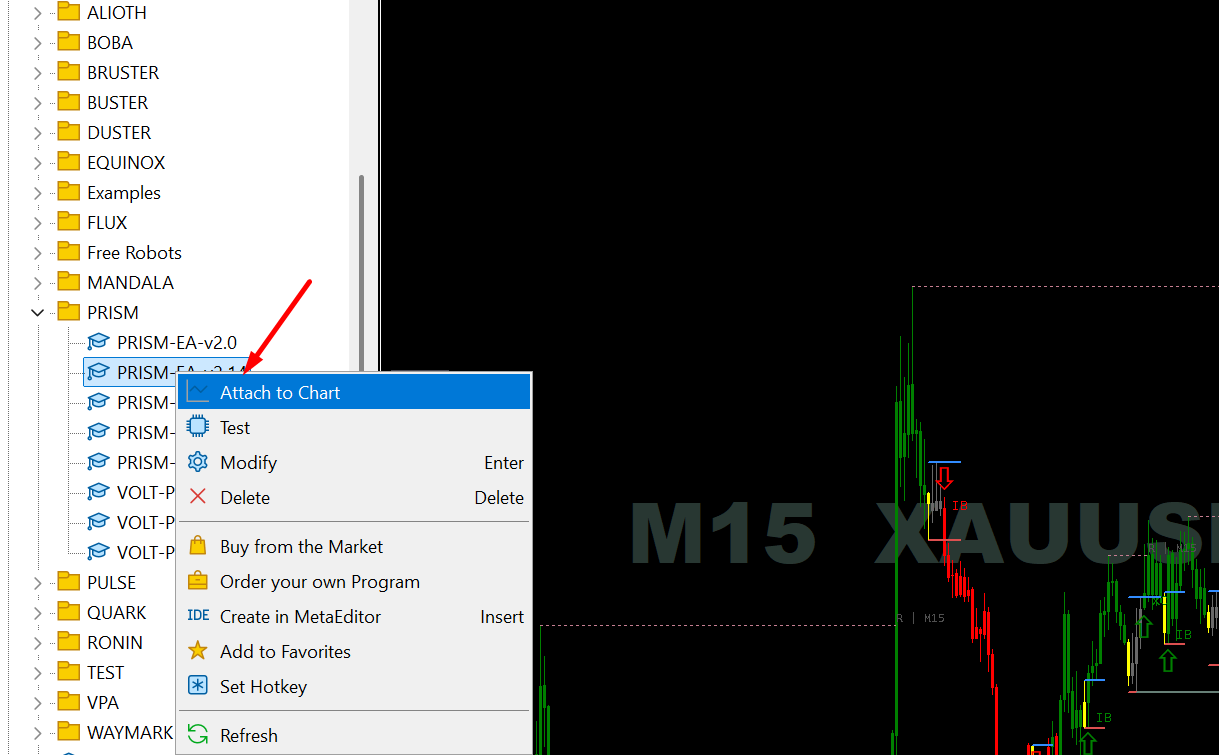
In the Navigator panel, find your EA under Expert Advisors. Drag and drop it onto the chart, or double-click it.
Di panel Navigator, temukan EA kamu di bawah Expert Advisors. Drag and drop ke chart, atau double-click.
04
Enter Your License Key Masukkan License Key
1
Open the Inputs Tab
Buka Tab Inputs
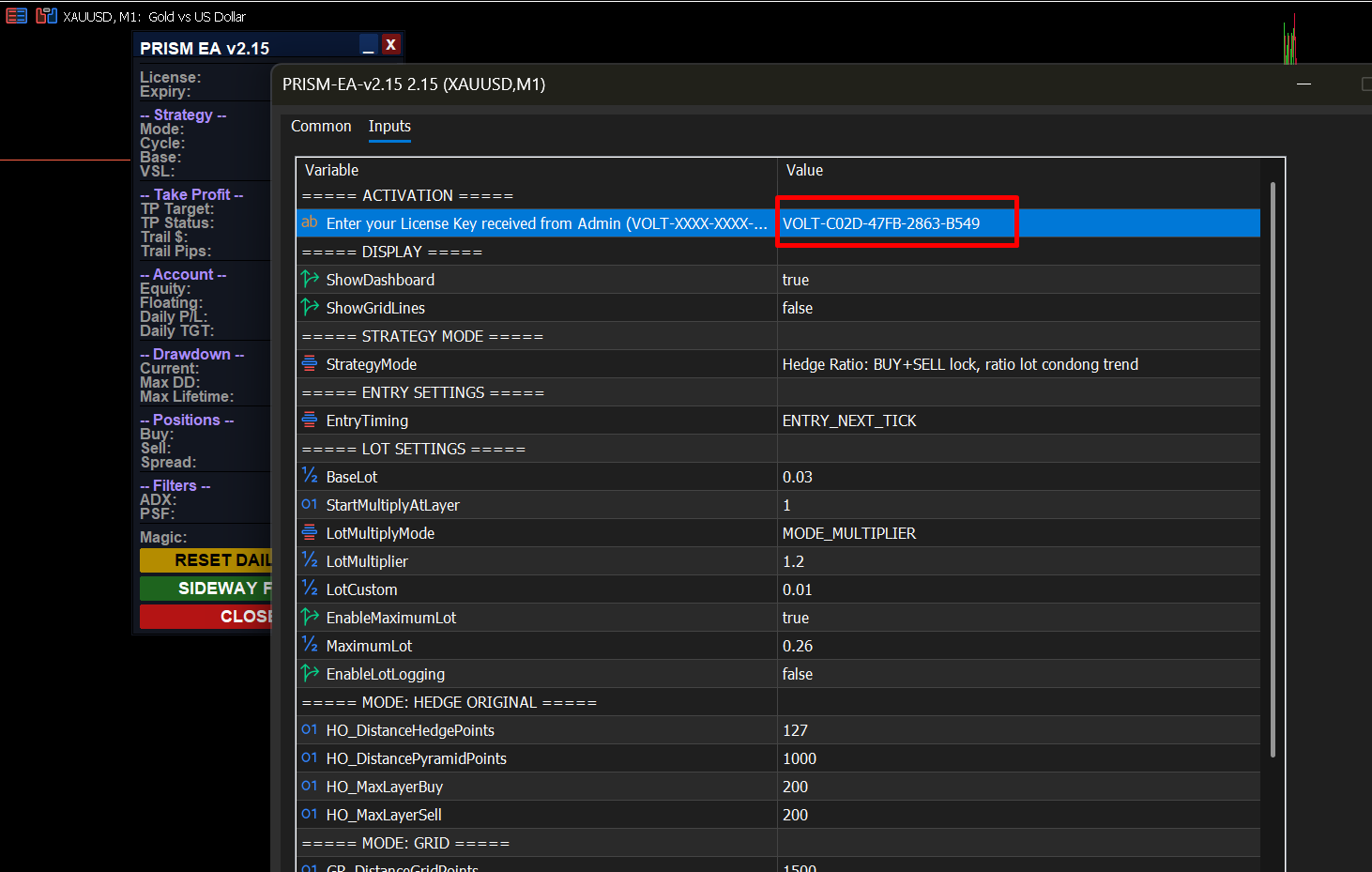
When the EA dialog opens, click the Inputs tab. You will see the ACTIVATION section at the very top.
Saat dialog EA terbuka, klik tab Inputs. Kamu akan melihat bagian ACTIVATION di paling atas.
2
Paste Your License Key
Paste License Key Kamu
Click on the LicenseKey field and paste the key you received from admin. The format looks like this:
Klik pada field LicenseKey dan paste key yang kamu terima dari admin. Formatnya seperti ini:
VOLT-XXXX-XXXX-XXXX-XXXX
Your license key is linked to your MT5 account number. It will not work on a different account.
License key kamu terhubung dengan nomor akun MT5 kamu. Tidak akan berfungsi di akun lain.
3
Click OK
Klik OK
Click OK to start the EA. It will connect to the license server (takes a few seconds).
Klik OK untuk memulai EA. EA akan terhubung ke server license (membutuhkan beberapa detik).
4
Verify in Dashboard
Verifikasi di Dashboard
Once verified, the EA dashboard on the chart will show LIC: ACTIVE in green. You are ready to trade!
Setelah terverifikasi, dashboard EA di chart akan menampilkan LIC: ACTIVE berwarna hijau. Siap untuk trading!
LIC: ACTIVE
Exp: 2026-12-31
05
License Status Reference Referensi Status License
| Status | Meaning | Action |
|---|---|---|
| LIC: ACTIVE | License valid and verified | EA running normally ✅ |
| LIC: OFFLINE | Server unreachable, grace period active | EA still runs. Check your internet connection. |
| LIC: READ-ONLY | License expired/revoked but open positions exist | EA manages existing positions only. No new entries. Renew your license. |
| LIC: EXPIRED | License has expired | Contact admin to renew. EA will stop after all positions are closed. |
| LIC: INVALID | Wrong key or account not registered | Double-check the key. Contact admin if the issue persists. |
| LIC: REVOKED | License manually revoked by admin | Contact admin for assistance. |
The EA says "Ping failed HTTP:-1" — what do I do?
EA menampilkan "Ping failed HTTP:-1" — apa yang harus dilakukan?
This means the WebRequest URL has not been added yet. Go back to Step 2 and make sure
This means the WebRequest URL has not been added yet. Go back to Step 2 and make sure
https://script.google.com is in the allowed URL list.
Artinya URL WebRequest belum ditambahkan. Kembali ke Langkah 2 dan pastikan https://script.google.com sudah ada di daftar URL yang diizinkan.
Can I use the same key on multiple accounts?
Apakah bisa pakai key yang sama di beberapa akun?
No. Each license key is tied to one specific MT5 account number. Contact admin to register additional accounts. Tidak bisa. Setiap license key terhubung ke satu nomor akun MT5 tertentu. Hubungi admin untuk mendaftarkan akun tambahan.
No. Each license key is tied to one specific MT5 account number. Contact admin to register additional accounts. Tidak bisa. Setiap license key terhubung ke satu nomor akun MT5 tertentu. Hubungi admin untuk mendaftarkan akun tambahan.
The EA stopped mid-trade. Is my position safe?
EA tiba-tiba berhenti saat ada posisi terbuka. Apakah posisi saya aman?
Yes. If your license expires while there are open positions, the EA enters READ-ONLY mode — it will continue managing your existing positions and will only stop after all positions are closed. Aman. Jika license expired saat ada posisi terbuka, EA masuk mode READ-ONLY — tetap manage posisi yang ada dan baru berhenti setelah semua posisi tertutup.
Yes. If your license expires while there are open positions, the EA enters READ-ONLY mode — it will continue managing your existing positions and will only stop after all positions are closed. Aman. Jika license expired saat ada posisi terbuka, EA masuk mode READ-ONLY — tetap manage posisi yang ada dan baru berhenti setelah semua posisi tertutup.
Need Help? Butuh Bantuan?
Our support team is ready to help you get started. Tim support kami siap membantu kamu.